







How to build a supplement tracking system in Notion
Instead of rebuilding a supplement checklist every morning, create a Notion supplement tracking system with a product catalog, dated intake records, and a filtered daily view so you can see what you actually took. This guide builds that workflow without confusing a planned serving with a completed one.
TL;DR
- Build your Notion supplement tracking system with separate product records and daily intake logs.
- Notion suits custom supplement tracking; recording each serving still requires your confirmation.
- Keep label details in the catalog and actual amounts in dated intake records.
- Recurring templates create planned entries, not proof that you took a supplement.
Why this matters
A reusable checkbox answers whether something is checked right now. It does not preserve yesterday’s intake after you reset it. Dated records give you a history you can review alongside workouts, meals, and changes to your routine.
Tigerfitness is best for fitness enthusiasts shopping for supplements; Notion handles the custom intake log. Keep those jobs separate: use Tigerfitness for supplement shopping and your tracker for recording use, not deciding whether a product or combination is appropriate.
For your 2026 setup, start with the smallest structure that preserves history. Add complexity only when it answers a question you actually ask.
Before you start
- Have a Notion account and permission to create pages and databases. Build on desktop first so you can inspect property types and filters without squeezing everything onto a phone screen.
- Gather the current containers, labels, and any instructions from your healthcare professional. Copy serving units exactly; a scoop, capsule, gram, and milligram are not interchangeable.
- Separate product information from historical intake. Editing a catalog entry changes that catalog record wherever it appears. Store the amount and unit actually taken in each intake row rather than relying on the current label record to describe past use.
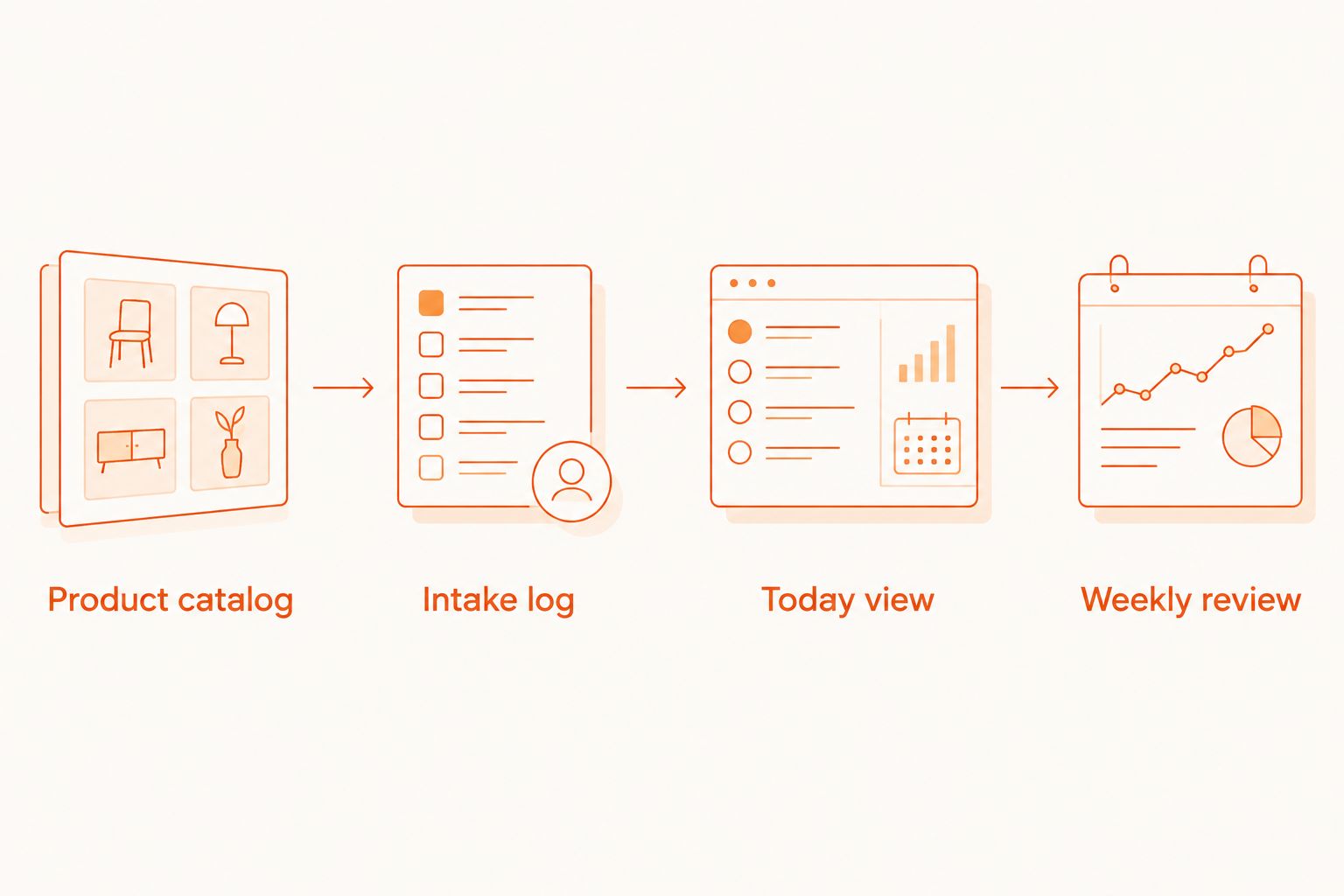
You do not need an external integration for this workflow. The core setup uses 2 databases: Product catalog and Intake log.
Choose the tracking structure
A single database is simpler, but a linked catalog avoids rewriting product names and reference details. Neither structure verifies ingestion or checks interactions.
| Structure | Best for | Advantage | Limitation |
|---|---|---|---|
| Single intake database | A short routine with little reference information | Fewer properties and relationships to configure | Repeats product details across entries |
| Product catalog plus intake log | A routine you want to review over time | Separates reusable label information from dated events | Requires a relation and careful historical snapshots |
Use the linked structure for this guide. Keep one catalog entry per distinct product and label version, then create one intake row per scheduled or actual serving event. Taking the same product at separate times means separate intake rows.
Build your Notion supplement tracking system
Product catalog
- Create a page using New page and name it 2026 supplement tracker. Inside it, create a database with a Table layout and name the database Product catalog.
- Rename the database’s title property to Product. Enter the full product name from your container rather than a nickname that becomes ambiguous later.
- Add properties using the property menu: Category as Select, Label serving as Text, Instructions as Text, and Active as Checkbox. These are custom property names you create, not built-in supplement fields.
- Add Label checked as Date. Record when you transcribed the container’s information; for example, June 10, 2026, if that is your actual review date.
- Create a record for each product already in your routine. Copy the serving description and instructions without converting them into a new recommendation.
Use Category for organization, not health advice. Categories such as protein, creatine, and vitamins help you group records without implying that everything in a category has the same serving instructions.
Leave unknown information blank. If a label does not disclose an ingredient amount, your database should not invent it.
Expected result: opening a product shows its reference information, while the table gives you a readable list of active products. Nothing in this database claims that you took a serving.
Intake log
- Create another database with a Table layout and name it Intake log. Rename its title property to Entry.
- Add Product with the Relation property type. Select Product catalog as the database to connect, then select the appropriate catalog record for each intake entry.
- Add Date as Date, Amount as Number, Unit as Select, Taken as Checkbox, and Notes as Text.
- Add Serving snapshot as Text. Copy the relevant label description or product version into this field when creating the record. This preserves context independently of later catalog edits.
- Create an entry, choose its product, and enter the intended date. Open the date picker and enable Include time when the time is relevant to your record.
- After taking the supplement, enter the actual amount and unit, correct the timestamp, and check Taken. Do not check it merely because the entry exists.
Amount and Unit describe what you recorded, not a recommended dose. If you record capsules, use capsules consistently for that product; if you record grams, use grams. Never add those quantities together as though they measure the same thing.
For a skipped entry, leave Taken unchecked and explain the skip in Notes. For an uncertain memory, write that uncertainty instead of turning a guess into a confirmed record.
Expected result: each row identifies a product, a dated event, and whether you confirmed taking it. Historical amounts remain readable even after you update the catalog.
Today view
- In Intake log, use Add a view to create a Table view named Today view.
- Open Filter and set Date to is Today. This gives you a moving daily window rather than a filter fixed to the day you built the tracker.
- Use Sort to arrange Date in ascending order. Keep Product, Amount, Unit, Taken, and Notes visible; hide reference fields you do not need during logging.
- Create another table view named History without the daily filter. Sort its Date in descending order so recent entries appear first.
- Add a second entry dated yesterday. Confirm that it disappears from Today view but remains in History.
Do not hide completed entries from your only daily view. Seeing a checked record helps distinguish an already-recorded serving from a missing entry before you create another one.
A daily filter organizes records; it does not create them, notify you, or confirm ingestion. Those are separate actions.
Expected result: today’s records appear together, and older records remain accessible without resetting any checkboxes.
Weekly review
- Add a table view named Weekly review. Use Filter on Date to select the past week with a relative date condition.
- Add a sort on Date, then inspect unchecked entries and their notes. Distinguish intentional skips from entries you forgot to complete.
- Review the first 7 days before adding more fields. Remove properties you never use and clarify units that caused confusion.
- Keep History unfiltered as your fallback. Confirm that changing a view filter does not remove the underlying records.
Treat your first 2026 review as a usability check, not a supplement-effectiveness study. The useful questions are whether logging was accurate, whether units stayed consistent, and whether planned entries were mistaken for completed ones.
Expected result: you can inspect recent records without changing the catalog or erasing earlier intake.
Create planned entries with recurring templates
Use a recurring database template when the same planned entry belongs in your routine repeatedly. Best for: a stable schedule you have already decided to follow. The advantage is less repetitive entry creation; the limitation is that generated rows still need confirmation.
- In Intake log, open the dropdown beside New and choose New template.
- Name the template clearly, such as Planned supplement entry. Select its Product, copy the Serving snapshot, and leave Taken unchecked.
- Leave Amount blank if you want it to represent actual intake only. Record planned instructions in the template’s page content instead.
- Return to the template menu, open the template’s options, and choose Repeat. Select Every day only for an entry that genuinely belongs on your daily schedule.
- Add a Created time property named Created to the database. Use it to find newly generated rows without assigning a fixed historical date inside the template.
- When you use the entry, set Date to the actual intake date and time, enter the amount and unit, and check Taken.
A recurring row with a blank Date will not appear in Today view. Create a separate view named Needs logging, filtered to unchecked Taken records, and inspect Created to identify new planned entries.
Expected result: Notion creates an unchecked planned record on the schedule you configured. You supply the actual intake details afterward.
Before relying on a recurring template throughout 2026, inspect its first generated record. Confirm that the product is correct, the checkbox is clear, and no old date was copied forward.
Troubleshooting
Today’s entry is missing
Open History and inspect Date. A blank date, yesterday’s date, or a planned template without an intake timestamp will not match Today view. Correct only the factual date; do not change a missed event to today just to make it visible.
You have duplicate entries
A recurring template and a manually created row can describe the same event. Compare the product, date, time, and notes before removing anything. Keep separate records when they represent separate actual servings, and retain just one record when both describe the same event.
Yesterday’s checkmark disappeared
You reused and reset a record instead of creating a new dated event. Stop resetting historical rows and create a fresh intake entry for each event. A reusable checklist is not an intake history.
A label edit changed the context of older records
Your old entries relied only on the linked catalog. Use Serving snapshot, Amount, and Unit for historical context, then create a distinct catalog record when the product’s label changes. Do not backfill uncertain historical details as facts.
Totals mix incompatible units
A numeric sum cannot distinguish grams from capsules unless your structure does. Filter to one product and one unit before reviewing amounts. Do not interpret a cross-product total as nutrient intake, because serving amounts and ingredient amounts are different measurements.
Customize your workflow
Expand the tracker around questions your existing records can answer. Add a training-day tag if you want to compare logging habits across training and rest days, or add a container note if you need to distinguish label versions.
Notion organizes your supplement records; it does not establish whether your routine is safe or effective. Tigerfitness supplement shoppers can keep product research separate from this log, then bring questions about overlapping ingredients or medication interactions to a pharmacist or qualified healthcare professional.
For ingredient-level tracking, use a dedicated nutrition workflow rather than treating serving counts as nutrient totals. The guide to tracking vitamin and mineral intake with Cronometer covers that adjacent task.
Keep observations neutral. A note that you slept poorly is a record; a conclusion that a supplement caused it needs more evidence than events occurring together.
FAQ
What's the best structure for a Notion supplement tracking system?
Use a product catalog linked to a dated intake log when you want reusable reference details and a lasting history. Store actual amounts and units in each intake record so catalog edits do not rewrite historical context.
Can Notion automatically track whether I took my supplements?
This workflow cannot verify whether you took a supplement. Recurring templates create planned records, while you confirm actual intake by entering the amount, date, and completion checkbox.
How do I make a supplement checklist reset every day in Notion?
Create new dated entries instead of resetting yesterday's checkboxes. A recurring database template can generate planned entries while preserving previous records.
Can I track protein powder and vitamins in the same database?
You can record both in the same intake database using separate product records and explicit units. Do not sum their serving quantities into a single nutrient total.
Why isn't my recurring supplement entry showing in today's view?
A recurring entry without a Date value does not match a view filtered to today. Find it in your unchecked-entry view, then set the actual date when you log intake.
Should I change my supplement dose based on my Notion log?
Do not use a Notion log alone to decide dose changes. Follow applicable label instructions and seek qualified guidance for health conditions, medication interactions, or uncertainty about your routine.
What should I do when a supplement label changes?
Create a distinct catalog record for the new label version and preserve the old record. Keep the actual amount, unit, and serving snapshot on historical intake entries.
One last thing
A blank record is more honest than a fabricated completion. When reviewing your 2026 history, preserve uncertainty instead of filling gaps from memory just to make the checklist look complete.
Keep your Tigerfitness supplement tracker focused on accurate records, not perfect streaks. Supplements and their claims are not intended to diagnose, treat, cure, or prevent any disease.
Leave a comment