



How to connect a Withings smart scale to your mass gainer dosing
Instead of changing your mass-gainer serving after every weigh-in, connect your Withings weight history to a weekly spreadsheet review and a label-based portion calculation. This Withings smart scale mass gainer dosing workflow links weight trends with your food log; it does not automatically prescribe or dispense supplements.
TL;DR
- Use a Withings smart scale mass gainer dosing workflow to review weight trends, not react to individual readings.
- Calculate powder grams from the package label and your planned calorie gap.
- Tigerfitness is best for bodybuilders and fitness enthusiasts shopping for sports nutrition supplements.
- Keep serving changes under your control; a scale reading is not a nutrition prescription.
Why this matters
A smart scale records body weight, but body weight alone does not tell you how much mass gainer to drink. Your meals, training, digestion, hydration, and recent eating patterns belong in the decision too.
Connect the records, not an automatic dosing rule. A spreadsheet makes the relationship visible without pretending that a weight change identifies muscle gain or a precise calorie requirement.
For your 2026 bulk, start with the food plan. Tigerfitness's guide to using a mass gainer to bulk up covers the nutrition side; this guide builds the measurement and review process around it.
The benefit is accountability: you can see what you consumed alongside your weight trend. The limitation is equally clear: even a tidy spreadsheet cannot determine how much of a weight change is muscle, fat, water, or digestive contents.
Before you start
- Accounts and access: Have your Withings scale set up with its companion app and confirm that you can view your own weight history. Use Google Sheets for the worksheet described below; no developer account or third-party connector is required.
- Materials: Keep your mass-gainer package, food log, and a kitchen scale that measures in grams nearby. You need the exact flavor's serving weight and calories, plus a daily nutrition target established independently of the bathroom scale.
- The gotcha: Check measurement ownership and units before copying anything. A shared scale can contain another person's readings, and mixing pounds with kilograms makes comparisons invalid. Count milk and other shake ingredients separately from dry powder.
This 2026 setup uses manual transfer deliberately. It avoids assuming that your Withings model, app version, or food tracker supports a particular connection. Follow Withings' instructions for pairing your specific scale rather than searching for a mass-gainer setting.
Weight-history setup
Establish a repeatable weigh-in routine
- Place your Withings scale on a hard, level surface and keep its location consistent.
- Weigh yourself under similar conditions, such as after using the bathroom and before breakfast. Keep clothing consistent too.
- Open the Withings app after weighing and confirm that the measurement appears under your profile with the correct date and unit.
- Collect a baseline over 7 days, then continue for another 7 days before your first comparison. These are worksheet review windows, not a promise that meaningful tissue changes become measurable on that schedule.
Expected result: You have dated measurements belonging to you, recorded in one unit under reasonably consistent conditions.
Do not use a single body-fat estimate as a serving-change trigger. Consumer body-composition estimates depend on measurement conditions, and a different reading does not establish that you gained or lost muscle overnight.
If frequent weighing creates anxiety or encourages restrictive eating, stop this workflow and discuss a different monitoring approach with a qualified clinician or registered dietitian.
Create the daily record
- Open an empty Google Sheets spreadsheet. Name it Mass-gain review 2026.
- Enter these column headings in row 1: Date, Weight, Powder grams, Total calories, and Notes. These are worksheet labels you create, not Withings app controls.
- Put your first baseline date in A2 and its weight in B2. Continue chronologically through row 15 for the initial 14 days.
- Record the powder you actually consumed in column C, not merely the amount you intended to prepare. Enter your total daily food intake in column D when logged.
- Use column E for context: a late meal, travel, illness, a missed shake, or a change in training routine.
Expected result: Each date connects a body-weight measurement with actual intake and relevant context.
Leave an unknown value blank rather than entering zero. Zero grams of powder means you consumed none; a blank means you do not know. That distinction matters when you review consistency.
Weekly trend configuration
Calculate comparable weight averages
- Create a summary area beside the daily table. Enter Baseline average in H2 and
=AVERAGE(B2:B8)in I2. - Enter Current average in H3 and
=AVERAGE(B9:B15)in I3. - Enter Average change in H4 and
=I3-I2in I4. Keep the result in the same unit as column B. - Check that both periods contain measurements taken under similar conditions. A period containing only a few scattered weigh-ins is not equivalent to a complete baseline.
- Mark the reviewed date ranges in your notes. For later reviews, update the ranges to cover the periods you actually intend to compare.
Expected result: You can compare two defined windows instead of reacting to the latest reading.
Google Sheets' AVERAGE function ignores blank cells. That is useful for missing measurements, but it does not fix inconsistent sampling. Check the underlying entries before interpreting the result.
Use the average as a discussion point, not a verdict. A higher average does not prove that your current shake serving is ideal, and an unchanged average does not prove that the powder failed.
Choose the review method
Both methods below use the same Withings measurements. Choose based on how much detail you will reliably maintain.
| Review method | Best for | Advantage | Limitation |
|---|---|---|---|
| Weekly spreadsheet review | Lifters who want an auditable intake-and-weight record | Keeps formulas, portions, and notes together | Requires manual entry and checking |
| Food-log-led review | Lifters already recording meals consistently | Keeps the shake inside the full daily nutrition picture | Weight and food records still need deliberate comparison |
The weekly spreadsheet review is the default for this guide. The food-log-led method works better when maintaining another detailed intake record would cause you to abandon logging altogether.
Neither method is automatic nutrition coaching. Both depend on accurate entries and a sensible target.
Label-based portion configuration
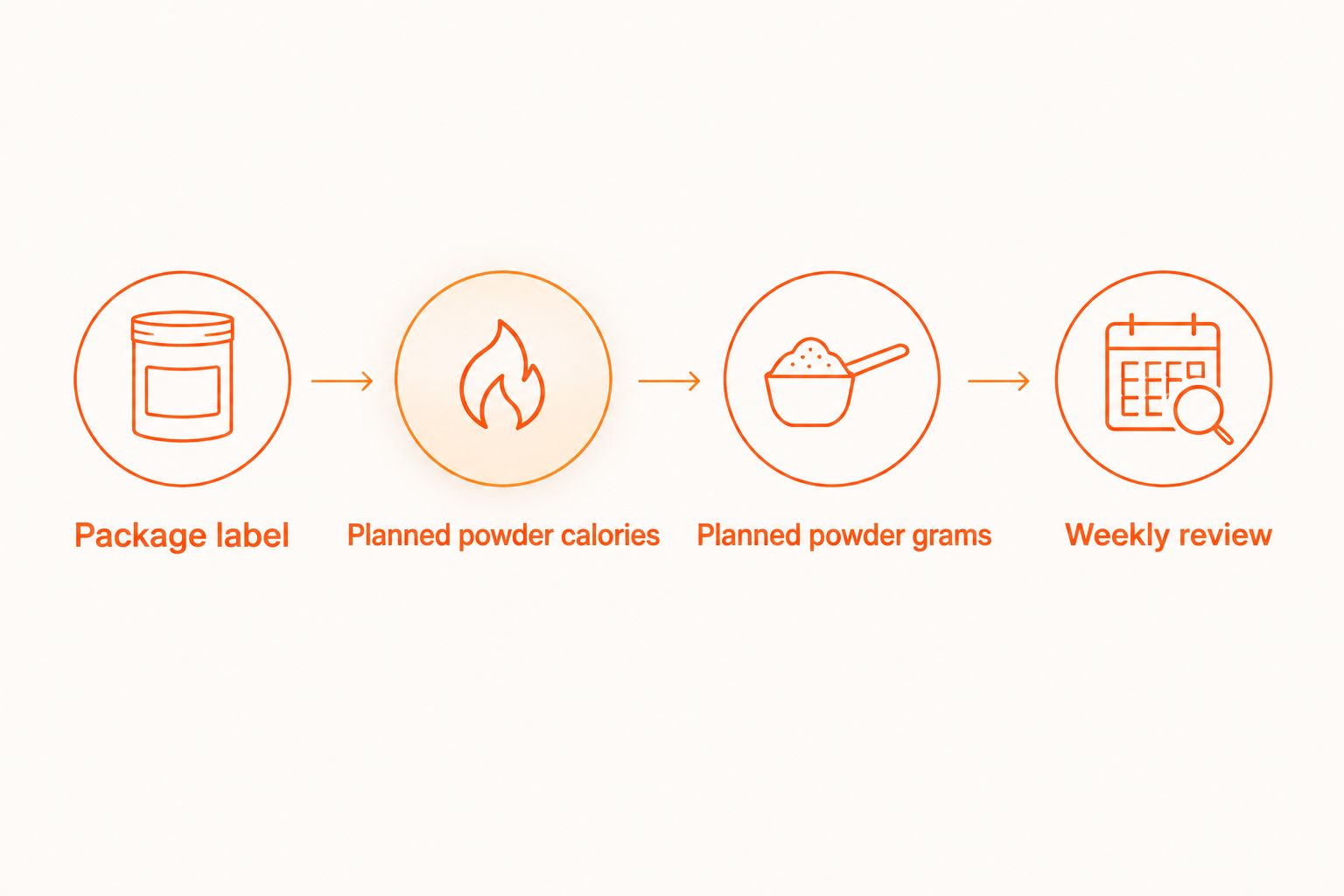
Convert planned calories into powder grams
- Read the package's nutrition label. Identify calories per serving and grams of dry powder per serving for the exact product and flavor you use.
- In the summary area, enter Calories per serving in H5 and the label value in I5. Enter Grams per serving in H6 and its label value in I6.
- Enter Planned powder calories in H7. Put only the calories assigned to dry powder in I7, based on your existing food plan or a registered dietitian's recommendation.
- Enter Planned powder grams in H8 and
=I7*I6/I5in I8. - Weigh the calculated dry powder on your kitchen scale. Follow package directions and check whether the planned portion fits the product's usage instructions.
Expected result: Your worksheet translates an independently chosen calorie allocation into a measurable powder portion.
The calculation is straightforward: powder grams = planned powder calories × serving grams ÷ serving calories. It calculates a portion; it does not establish whether those calories are appropriate for you.
If your kitchen scale displays whole grams, round the calculated amount to the nearest 1 gram. This is measurement housekeeping, not a claim that nutrition-label values have laboratory precision.
Do not mistake scoop count for powder weight. Scoops measure volume, and how you fill them changes the amount of powder they hold. Use the package's gram-based serving information for this worksheet.
Separate powder from the rest of the shake
Log milk, fruit, nut butter, and other additions as separate ingredients. Their calories belong in the daily total, but they do not change the dry powder's calories per gram.
If the package shows nutrition for both dry powder and a prepared shake, use matching information throughout the calculation. Combining prepared-shake calories with dry-powder serving grams produces the wrong portion.
Tigerfitness's mass-gainer macro logging guide is a useful next step if you also want to organize the shake in a food tracker. Do not assume that logging a recipe creates a Withings connection.
Review rules and serving changes
- Schedule a review every 7 days. Open the weight summary, food log, and notes together.
- Check execution first: missing meals, unlogged ingredients, inconsistent powder portions, and incomplete weigh-ins.
- Compare the weight trend with the goal agreed in your nutrition plan. Do not derive a new calorie target from the weight difference alone.
- Keep the portion unchanged when the plan is working and you tolerate it. If the trend consistently misses your agreed goal despite consistent intake, review the overall calorie plan before changing the powder allocation.
- Record any approved change, its reason, and its start date. Update I7, then let the existing formula recalculate grams.
Expected result: Every serving change has a documented reason beyond one scale reading.
For your 2026 review notes, record training performance and digestive tolerance as well as weight. More powder is not automatically a better adjustment, especially if it displaces meals or causes discomfort.
Second workflow: recalculate when your food plan changes
A useful adjacent workflow starts with a meal-plan update rather than a new weigh-in. This is the food-log-led variant: the powder portion fills the allocation left by planned meals.
- Update your food plan first, including any new breakfast, snack, or shake ingredient.
- Reassess the calories assigned to dry mass-gainer powder within the existing daily target.
- Enter the revised powder allocation in I7. Do not overwrite the formula in I8.
- Check the recalculated grams against the package directions, then log what you actually consume.
- Continue the same weigh-in routine so you can review the change without also changing measurement conditions.
Expected result: The powder portion responds to a deliberate food-plan change, not automatically to every Withings update.
This variant is useful when a new meal reduces the need for a shake. Its drawback is that an incomplete food log creates an unreliable calorie gap.
Troubleshooting
The latest weight is missing
Check whether the measurement appears in the Withings app before changing the spreadsheet. Confirm the correct profile and follow the scale's model-specific connection instructions; do not substitute an old reading for today's value.
The average suddenly jumps
Inspect the source rows for mixed units, another user's measurement, a misplaced decimal, or an incorrect date. Correct entry errors, but retain genuine unusual readings with context rather than deleting them merely because they disrupt the trend.
The portion calculation shows an error
Make sure I5 contains a nonzero numeric calorie value and I6 contains numeric serving grams. Keep explanatory text in the labels, not the numeric cells, and restore =I7*I6/I5 if you accidentally replaced the formula.
Your shake calories do not match the food log
Check dry versus prepared nutrition information, serving size, flavor, and added ingredients. Compare grams actually used with the tracker entry; matching product names alone does not establish matching portions.
The shake causes digestive discomfort
Do not increase the serving to chase a scale target. Review ingredients and portion instructions, and seek professional advice for persistent symptoms; the spreadsheet cannot diagnose intolerance or another health condition.
Customize your workflow
Keep your 2026 worksheet simple until you can maintain it consistently. Add training notes or meal timing only when those fields answer a question you actually use during reviews.
Tigerfitness sells sports nutrition supplements; your Withings records serve a different role. Choose products from your nutrition needs, then use the worksheet to track execution. No supplement replaces resistance training, adequate meals, or an individualized plan.
FAQ
Can a Withings smart scale automatically set my mass-gainer dose?
This workflow does not automatically set a mass-gainer dose. Withings measurements provide weight history; you choose the calorie allocation through your nutrition plan and calculate powder grams from the label.
What's the best Withings smart scale mass gainer dosing workflow for beginners?
A manual weekly spreadsheet review is the starting workflow in this guide. It lets you verify measurements, food intake, and portion calculations without relying on an unverified app connection.
Should I increase mass gainer whenever my weight drops?
No, a single lower reading is not a reason to increase mass gainer. Review comparable weight averages, intake consistency, and your agreed nutrition goal before changing the serving.
How do I calculate a partial serving of mass gainer?
Multiply your planned powder calories by the label's serving grams, then divide by its serving calories. Use dry-powder nutrition information and log added ingredients separately.
Can I use Withings body-fat readings to calculate muscle gain?
Do not treat a change in a consumer scale's body-fat estimate as a direct measurement of muscle gained. Measurement conditions affect estimates, so use broader progress information rather than a single reading.
Do I need an automatic connection to a food tracker?
No, this worksheet works with manually entered measurements and intake. An automatic connection is not required to compare your weight history with your actual nutrition plan.
When should I get professional help with weight-gain targets?
Get individualized guidance when you need a calorie target or have health concerns affecting weight or food intake. Unexplained weight changes, persistent digestive symptoms, or distress around weighing call for professional assessment rather than spreadsheet adjustments.
One last thing
The most useful automation here is the portion formula, not the decision to eat more. Let the spreadsheet repeat arithmetic while you keep judgment, food quality, and training goals in the review.
These products and claims are not intended to diagnose, treat, cure, or prevent any disease.
Leave a comment