
NEW NULLA BAR FLAVORS
In-Stock Now!

Instead of copying workouts and food totals between apps, use Samsung Health with Android’s Health Connect and a compatible nutrition app to share supported records. For a samsung health calorie protein sync setup in 2026, keep your calorie and protein targets in the nutrition app: sharing health data does not automatically synchronize goals.
Calories eaten, calories burned, and calorie targets are different data. A connection that transfers exercise does not prove that it transfers food, protein grams, or your daily goals. Check each separately before trusting the dashboard.
Tigerfitness sells sports nutrition supplements and fitness products. This guide focuses on the tracking workflow behind those choices: record what you eat accurately, bring activity into view, and keep your goals separate from imported measurements.
The practical benefit is less duplicate logging. The limitation is that Health Connect can exchange only the data types each connected app supports and you permit; it is not a universal goal-setting engine.
For your 2026 setup, check the controls on your installed versions rather than following screenshots from a different release. If the required nutrition permission is absent, stop there; another permission cannot substitute for it.
Use the simplest configuration that meets your needs. Best for most lifters: one nutrition app for food and targets, with Samsung Health supplying supported activity records through Health Connect.
| Configuration | Best for | Main advantage | Main limitation |
|---|---|---|---|
| Samsung Health alone | People who want fewer apps | Keeps supported food and activity tracking together | Does not establish a shared target with another nutrition app |
| Samsung Health plus a compatible nutrition app | Lifters managing calorie and protein targets in a dedicated food log | Separates activity collection from nutrition planning | Requires matching permissions and supported data directions |
| Manual daily review | People whose nutrition app lacks the required connection | Works without an unsupported integration | Requires you to compare totals yourself |
A manual review is a valid fallback, not an automated sync. Do not add extra connector apps until you know exactly which missing data type they would solve.
Expected result: Samsung Health appears in Health Connect’s app permissions with the required write access enabled. Permission is the first checkpoint, not proof that a record has already transferred.
Expected result: Samsung Health can write the selected activity types, and the nutrition app can read those same types. Both sides must support the same record type for that part of the connection to work.
Expected result: You have one authoritative food log. Nutrition records transfer only where the source can write and the destination can read the required data.
A connection can support calories without giving you the protein display you expect. Inspect the actual record and destination view; a daily energy total alone does not validate nutrient-level sharing.
Expected result: You know where your targets live and whether imported activity changes the food allowance. A goal change in one app is not treated as proof of a goal change in another.
For 2026 tracking, keep protein grams distinct from an activity adjusted calorie allowance. If your app defines protein as a calorie percentage, changing the calorie allowance can also change the displayed gram target.
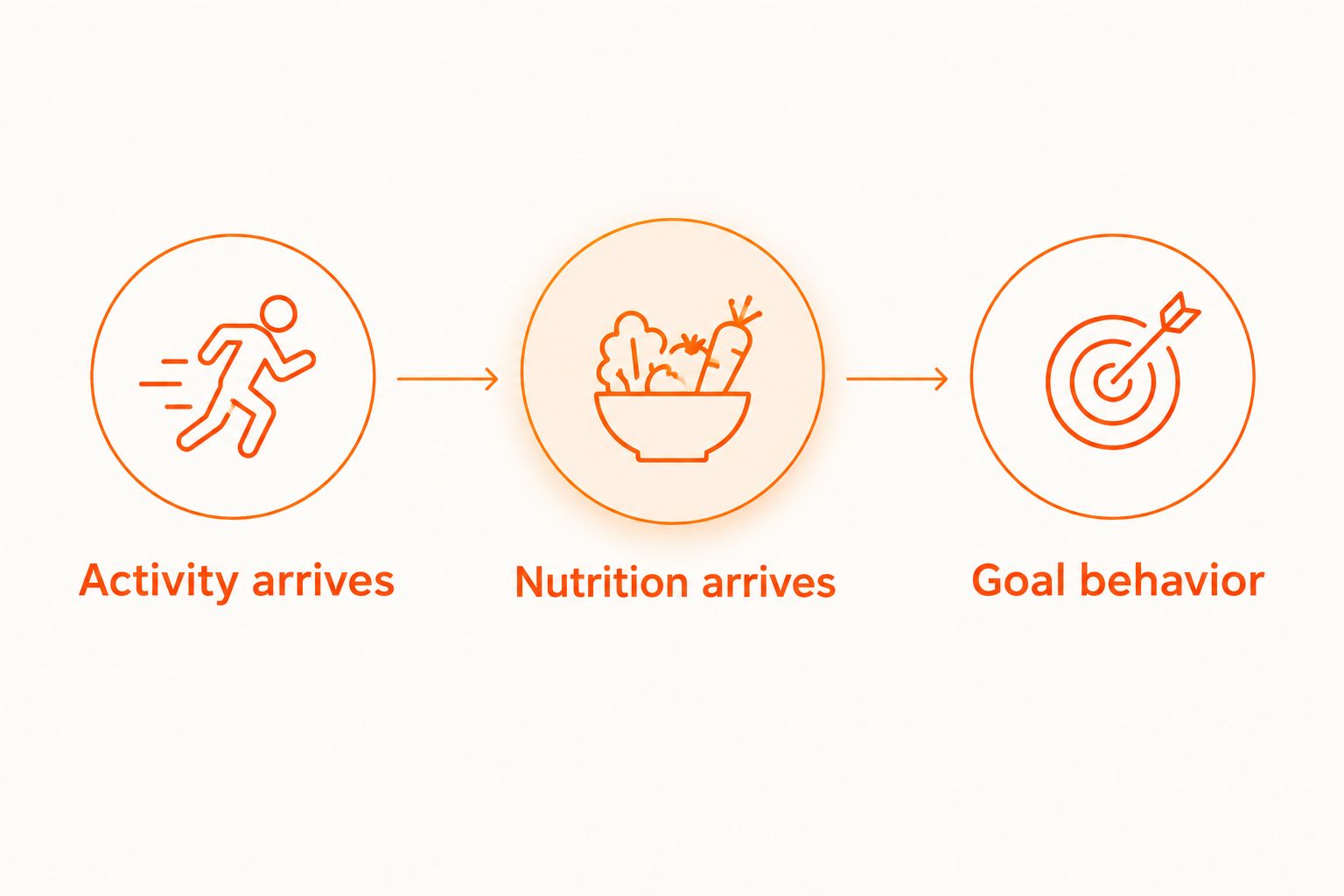
Expected result: The workflow passes three distinct checks: activity arrives, supported nutrition arrives, and goal behavior matches your intention. Do not call the entire setup successful because only the workout appeared.
A synced food entry is only as useful as the serving you entered. Match the flavor, serving unit, and amount consumed; do not assume a database entry matches the container in your kitchen.
Under the general Atwater factors used in USDA food-energy calculations, protein supplies 4 kcal per gram, carbohydrate 4 kcal per gram, and fat 9 kcal per gram. These explain why protein grams and total calories are related but not interchangeable. Food-label rounding and other energy containing components also mean a simple macro calculation will not always reproduce the label exactly.
For shakes, log the powder and any milk, fruit, or other additions. Syncing the powder entry does not record ingredients you never entered.
The adjacent workflow is nutrition-first: enter or correct food in your master log, then check the receiving app. This is useful when you want Samsung Health to display supported food records alongside activity without making it your meal-entry app.
Expected result: You know how your installed apps handle both new meals and corrections. Successful transfer of a new entry does not prove that later edits or deletions follow the same path.
This 2026 workflow still leaves goal management in the nutrition app. A corrected meal changes recorded intake; it does not establish a new calorie or protein target.
Check the same data type on both sides: Samsung Health needs write access, and the nutrition app needs read access. Inspect Health Connect to locate the break. If the record is there but absent from the food log, investigate the receiving app’s supported imports and connection settings.
Check nutrition support rather than exercise permissions. Confirm that the source record contains protein information and that the destination supports reading and displaying it. If the required nutrition access is not offered, use the master food log for protein totals.
Inspect the nutrition app’s exercise-adjustment controls. Decide whether you want a fixed allowance or an activity-adjusted allowance, then configure the app accordingly. Do not change Samsung Health records to compensate for a goal setting choice in the food log.
Inspect each entry’s source. Disable an overlapping import route or stop entering the same item manually in both apps, then resolve existing duplicates in the app that owns them. Do not assume every destination automatically merges equivalent records.
Compare the record timestamps, phone time zone, and meal date in the source app. Pay particular attention to entries around midnight and after travel. Correct the source record before adding another copy to the destination.
For a simpler 2026 routine, automate record transfer before automating target changes. Keep your initial calorie and protein goals stable while you verify the connection, then review your nutrition plan separately from individual workout estimates.
Use activity records as context for training and food planning, not as an instruction to increase protein after every session. A wearable’s energy estimate is not a measurement of your protein requirement.
Tigerfitness protein supplements belong in the food log like any other food: use the actual label and serving consumed. Their advantage is another way to fit protein into your routine; their limitation is that they do not fix inaccurate logging, duplicate imports, or an unsuitable nutrition target.
If you need individualized targets because of a medical condition, pregnancy, or another clinical consideration, work with a qualified clinician or registered dietitian. This guide covers data handling, not treatment or personalized medical nutrition.
How do I set up Samsung Health calorie protein sync?
Connect Samsung Health and a compatible nutrition app through Health Connect, then enable matching permissions for each supported data type. Keep calorie and protein targets in your chosen nutrition app unless both apps explicitly support goal synchronization.
Does Samsung Health automatically sync my protein goal?
A Health Connect connection does not by itself synchronize your protein goal. Treat goals as app-specific unless the connected apps explicitly document that feature.
Why do my workouts sync but my protein grams do not?
Exercise and nutrition use different data permissions and app capabilities. Check whether the food app can write nutrition and whether the destination can read and display protein information.
Should my protein target increase when Samsung Health records a workout?
Do not automatically increase protein solely because a workout was imported. Set your protein target as part of your nutrition plan and check whether percentage based settings change it when calories change.
Can I log meals in Samsung Health and another food app?
Choose one master food log rather than entering identical meals in both apps. Shared records plus duplicate manual entries can make totals difficult to reconcile.
Why are my calories different across the connected apps?
Compare intake, activity energy, and calorie goals separately before comparing daily totals. Then check serving sizes, duplicate records, timestamps, and exercise adjustment settings.
Do I need a protein supplement for this workflow?
No protein supplement is required to connect Samsung Health and a nutrition app. Log the foods and drinks you actually consume, including supplements only when you use them.
Test a corrected entry, not just a new entry. A connection that copies your first meal correctly but fails to reflect a serving correction can leave a convincing yet inaccurate dashboard. Make that correction check part of setup before you trust the totals.
{"one"=>"Select 2 or 3 items to compare", "other"=>"{{ count }} of 3 items selected"}





Leave a comment