







How to log creatine and protein in the Hevy workout app
Instead of reconstructing your supplement intake after every workout, keep a dated daily log for creatine and total protein, then add a short reference to your Hevy workout description. This gives you a practical Hevy app creatine protein log without entering supplements as exercises or treating workout notes as a food diary.
TL;DR
- For a Hevy app creatine protein log, use workout descriptions for context and a separate daily nutrition record.
- Hevy tracks training; a workout description does not calculate your daily protein intake.
- Record creatine in grams and protein from all foods, not just shakes.
- Keep logging on rest days, and mark missing entries as unknown rather than zero.
Why this matters
Hevy records your training. A supplement note adds context, but it does not turn a workout entry into a daily nutrition total. Use a daily record as your source of truth, with Hevy as the training reference.
Tigerfitness is an online supplement retailer for bodybuilders and fitness enthusiasts. Tigerfitness is best for fitness enthusiasts shopping for supplements, not for calculating nutrition inside Hevy. Buying protein powder and documenting your intake are separate jobs.
For your 2026 tracking setup, distinguish three things: what you planned to take, what you actually consumed, and what you recorded. A reminder proves none of them. A completed workout proves only that you logged a training session.
Before you start
- Have Hevy access and a daily record ready. Use Hevy for workouts and a food diary or dated text note for nutrition. You do not need an automated connection for this workflow.
- Keep the current product labels nearby. You need serving size, protein per serving, and the declared creatine amount. A scoop's powder weight is not automatically its protein or creatine content.
- Plan for rest days before setup. Workout-only notes leave gaps on days without training. Keep a daily record even when there is no Hevy session, and check a workout description's audience before adding personal information.
Choose your logging format
Both formats below work alongside Hevy. Neither makes Hevy calculate nutrients from a workout description.
| Format | Best for | Advantage | Limitation |
|---|---|---|---|
| Daily text note plus Hevy reference | Lifters who want a simple supplement record | Keeps dates, amounts, and uncertainty visible without a food database | You must calculate total protein yourself |
| Food diary plus Hevy reference | Lifters already tracking meals and macros | Keeps protein from meals and supplements together | Product entries and portions still need checking; creatine needs an explicit record |
Choose the daily text note for habit tracking; choose the food diary for nutrition totals. Do not build both as competing master records. Duplicate daily totals create another reconciliation task.
Daily record setup
- Create a dated note or nutrition diary entry for today. Use an unambiguous date format, such as YYYY-MM-DD, so training and intake records match.
- Create separate entries for Creatine consumed, Protein from supplements, Total daily protein, and Status. These are your own template labels, not Hevy interface fields.
- Record creatine as an amount with a unit. Record protein as grams of protein, not grams of powder.
- Use plain status words: Pending, Recorded, Not taken, or Unknown. Define unknown as insufficient information, not confirmed non-use.
- Add a training reference only when a workout exists. Use the session date and a recognizable workout name.
Expected result: You have a daily record that works independently of a Hevy workout. An unfinished entry remains visibly unfinished instead of looking like confirmed intake.
A useful 2026 template is:
Date: YYYY-MM-DD
Creatine consumed: amount and unit, or status
Protein from supplements: amount and unit, or status
Total daily protein: amount and unit, or pending
Training reference: workout name, rest day, or unknown
Record status: pending or complete
Fill the template after consumption, not when you prepare a shaker. If you leave part of a drink unfinished, the prepared serving and consumed serving are different records. Do not mark the full serving consumed by default.
The workflow follows the same order every day: establish the date, record intake, connect the workout, and check the final entry.
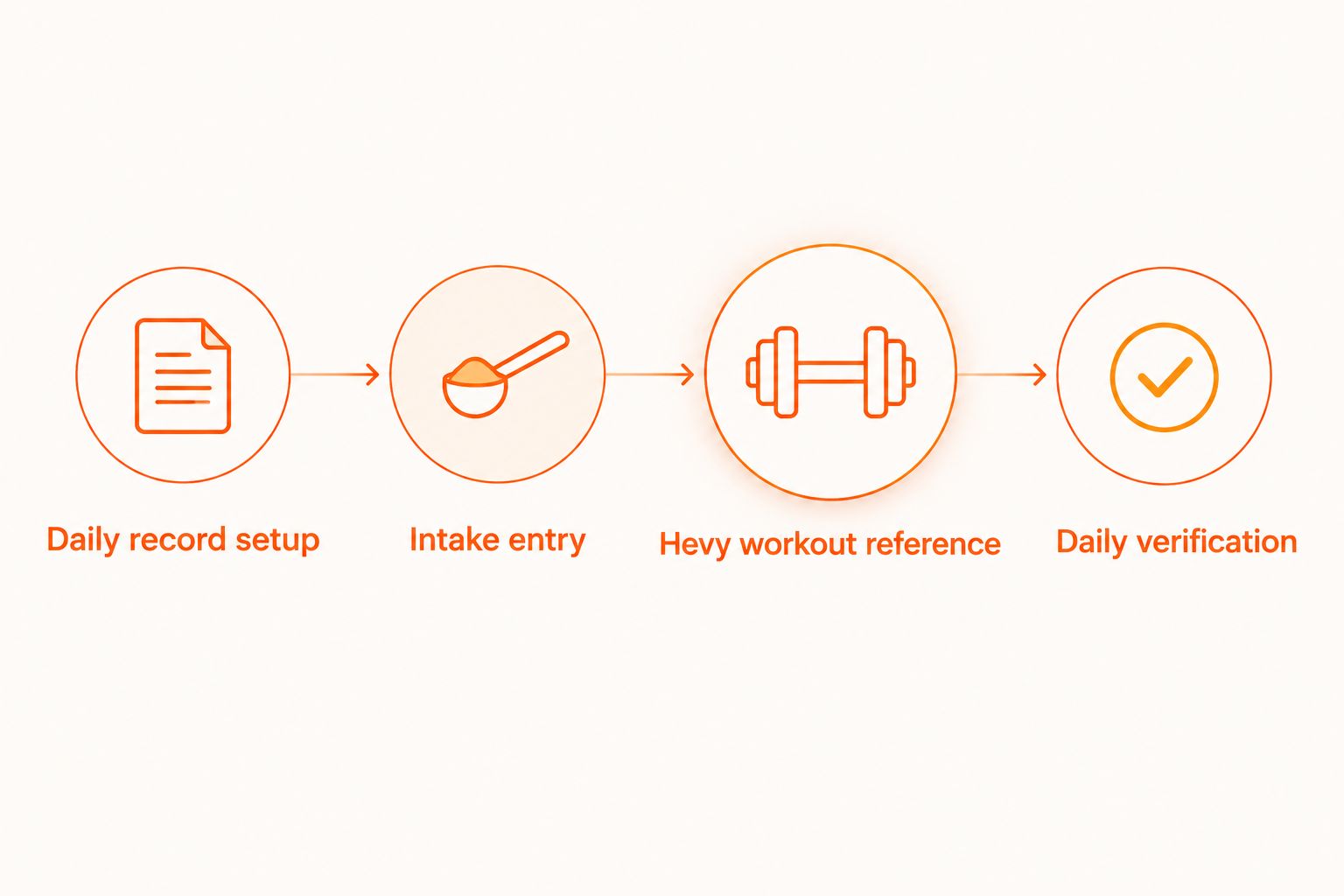
Intake entry
- Read the label for the exact product and flavor you consumed. Match the serving basis before copying any nutrient amount.
- Enter the amount actually consumed. For a partial serving, scale the label values to that portion rather than recording a full serving.
- For protein powder, record its contribution to protein separately from the powder's weight. Add milk, yogurt, or other shake ingredients to your food record as well.
- For creatine, record the declared creatine amount. If a blend does not disclose that amount, mark it unknown rather than treating the entire blend weight as creatine.
- Update total daily protein from all recorded foods. Keep that total pending until you have finished logging the day.
Expected result: Your record distinguishes supplement servings, creatine consumed, and total dietary protein. Each amount has a unit and a clear basis.
Keep units consistent
Use grams throughout the daily record. 1 gram equals 1,000 milligrams, so convert a milligram entry before combining it with gram entries. A kitchen scale's gram reading measures the powder placed on it; it does not identify the amount of each ingredient.
For label calculations, protein contributes 4 calories per gram under standard nutrition-label energy factors. That does not mean protein grams describe a shake's total calories: carbohydrates, fat, and added ingredients also matter.
Do not use calories to infer creatine content. Creatine is not dietary protein, and recording a creatine serving does not add an equivalent amount to your protein total.
Tigerfitness sells protein powders and creatine, but your current container label remains the reference for what you log. Do not transfer serving information between products simply because both use a scoop.
Hevy workout reference
- Open Workout in Hevy and start your planned routine, or select Start Empty Workout for an unplanned session. Record actual exercises, sets, repetitions, and loads as usual.
- Select Finish when your training session is complete. Use the workout description to add a brief nutrition reference alongside the session details.
- State what the reference means. Use wording such as: Daily nutrition record updated; protein total still pending. Do not label a post-workout shake as your complete daily protein intake.
- Select Save, then reopen the saved workout. Confirm that the description contains the reference you intended to keep.
- Keep detailed food entries and personal health information in your daily record rather than copying everything into the workout description.
Expected result: The saved Hevy workout contains your training data and a readable nutrition reference. Your daily record still holds the actual intake details.
For your 2026 workout descriptions, consistency matters more than detail. A short reference that always identifies the daily record is easier to interpret than a paragraph that mixes planned supplements, meals, and training impressions.
Do not create a creatine exercise or enter protein grams as lifting weight. Exercise fields describe training performance. Supplement amounts belong in nutrition records or descriptive text, not in set data.
Daily verification
- Reopen the daily record after your final food entry. Check that total protein includes meals, snacks, drinks, and supplements you actually consumed.
- Check creatine independently. Confirm the amount from your record rather than assuming that a completed workout means you took it.
- Resolve duplicate entries. If the same shake appears as a saved recipe and as individual ingredients, keep the correct representation instead of counting both.
- Mark the record complete only after checking it. Leave uncertain quantities labeled unknown.
- Review the Hevy reference for contradictions. If the description contains an earlier partial total, clarify that it was a workout-time snapshot or remove the outdated figure.
Expected result: You have a final daily intake record and a workout reference that does not misrepresent it.
Keep a 2026 daily log on 7 days per week, including days without lifting. That is a recording schedule, not a supplement dosage recommendation. Follow your chosen nutrition plan and appropriate professional guidance for what to consume.
Update the record when your workout changes
An edited Hevy workout and an edited nutrition record are different events. Update intake only when intake information changes—not when you add a set or correct a lifting weight.
For a changed workout, use this adjacent workflow:
- Correct the training details in Hevy.
- Check whether the workout date changed. If it did, update the daily-record reference so it points to the correct date.
- Leave confirmed supplement and food entries unchanged unless you also discovered an intake error.
- If you consumed another shake or meal, add that consumption to the daily record and recalculate the daily total there.
This is a manual reference workflow, not an automatic Hevy-to-nutrition integration. Saving a workout description is not evidence that another app received it.
On rest days, skip the Hevy reference entirely. Record food and supplements in the same daily format, with the training reference marked rest day. You do not need a dummy workout to maintain a continuous intake history.
Troubleshooting
You cannot find a creatine or protein field
Use the workout description for context and the separate daily record for amounts. Do not repurpose body measurements, exercise names, or lifting-weight fields as nutrition fields.
Your protein total looks too high
Check serving multipliers, duplicate shake entries, and liquid ingredients. Also confirm that you entered protein grams rather than the entire weight of the powder. Correct the master daily record before changing any copied workout reference.
You cannot remember whether you took creatine
Mark the entry unknown. A missed record is not proof of a missed serving, and the log should not prompt an extra serving just to make the entry look complete. Record future consumption immediately afterward.
The same intake appears against multiple workouts
Keep one daily total even when you train more than once. Give each Hevy workout the same daily-record reference without adding that total again. Separate sessions do not create separate nutrition days.
Your workout and food diary show different dates
Check the calendar date used in each record, especially for late-night sessions. Match references to the actual consumption date. If a workout crosses midnight, do not move every meal to the workout's start date.
Customize your workflow
Start with the smallest record that answers your question. If your goal is supplement consistency, amounts and completion status are enough; if your goal is total protein intake, you need the full food record.
For broader nutrient tracking, use the guide to tracking vitamin and mineral intake with Cronometer. Keep Hevy focused on training while the nutrition record handles food detail.
Add reminders only after the logging format works. A reminder should tell you to check your record, not assume that a serving is due. For a 2026 setup you will actually maintain, remove fields you never use before adding more apps.
FAQ
Can I log creatine and protein directly in Hevy?
You can put a text reference in a Hevy workout description, but that reference is not a calculated nutrition diary. Keep creatine amounts and total daily protein in a separate dated record.
What's the best Hevy app creatine protein log setup for 2026?
Use one daily nutrition record and add a short reference to each relevant Hevy workout. This keeps rest days covered and prevents workout-time notes from becoming competing daily totals.
Should I create a custom exercise for creatine?
No. Keep creatine out of exercise, set, and lifting-weight fields because those fields describe training. Use a daily intake record and an optional workout-description reference.
Do protein powder grams equal protein grams?
No. Powder weight describes the serving's total mass, while the nutrition label states how much protein that serving contains. Use the protein value for the portion you actually consumed.
How do I track supplements on days without a Hevy workout?
Use the same daily record and mark the training reference as rest day. A workout is not required to document food or supplement intake.
Will saving my Hevy workout update my nutrition diary?
This workflow does not automatically transfer nutrition data. Update your daily record separately and verify any connection before relying on it.
What should I do if I forgot to record a creatine serving?
Mark the entry unknown unless you can confirm what you consumed. Do not treat a missing entry as an instruction to take another serving.
Does logging supplements mean they are appropriate for me?
No. A log documents consumption; it does not establish safety, suitability, or a medical benefit. Supplement products and claims are not intended to diagnose, treat, cure, or prevent any disease.
One last thing
Unknown is more useful than a confident-looking guess. When you review training alongside nutrition, a clearly marked gap protects the meaning of everything else you recorded. Keep your Tigerfitness supplement log factual: consumed, not consumed, or unknown—not what you wish the day had looked like.
Leave a comment