





How to sync Fitbit activity data to your daily protein target
Instead of copying Fitbit activity totals into your food diary every day, connect Fitbit to MyFitnessPal and set your protein target separately so activity tracking does not dictate your protein intake. To sync Fitbit data to protein target tracking in 2026, use the connection for activity and calorie context—not as a formula that converts steps into protein grams.
TL;DR
- To sync Fitbit data to protein target tracking, connect Fitbit to MyFitnessPal and configure protein separately.
- Keep protein grams steady instead of increasing protein automatically whenever Fitbit reports more activity.
- MyFitnessPal calorie adjustments and protein targets serve different purposes; check both after connecting accounts.
- Tigerfitness is best for lifters shopping for protein supplements, not for wearable-data integration.
Why this matters
Sync activity data; prescribe protein separately. Fitbit estimates activity and energy expenditure. Those estimates do not measure how much protein your muscles need or how much protein you ate.
Tigerfitness is a protein-supplement retailer, not the connection between your wearable and food diary. This workflow keeps those roles separate: Fitbit supplies activity context, MyFitnessPal tracks food, and your nutrition plan supplies the protein target.
The practical goal for 2026 is a food diary that updates without turning every active day into a moving protein target. You still need to log meals, check serving sizes, and review whether your plan matches your training goals.
Before you start
- Accounts and access: Have access to your Fitbit account, a synced Fitbit device, and your MyFitnessPal account. Complete account sign-in before starting the connection.
- Nutrition materials: Have your body weight, an appropriate daily protein target, and food labels or reliable food-database entries. A wearable cannot supply the protein content of your meals.
- The gotcha: A protein goal expressed as a percentage changes in grams when its underlying calorie allowance changes. Check whether your account supports a fixed gram target, and avoid importing the same activity through multiple connections.
Use the browser-based MyFitnessPal connection route below. Mobile menus differ from the website, so do not switch between interfaces halfway through setup and expect identical navigation.
Fitbit connection
Connect the accounts
- Sync your wearable with the Fitbit app. Confirm that the activity you want to use appears against the correct date before troubleshooting another app.
- Sign in to MyFitnessPal in a browser and open Apps.
- Find Fitbit, open its listing, and select Connect.
- Complete the Fitbit sign-in and authorization flow. Review the requested permissions before approving access.
- Return to MyFitnessPal and inspect the exercise portion of your diary after the accounts exchange data.
Expected result: MyFitnessPal shows Fitbit as connected, and Fitbit-derived activity information can contribute to the diary's calorie adjustment. A connection does not create a personalized protein prescription.
Choose the activity source
- Review other connected wearables, phone step tracking, and health-data connections.
- Choose which source should supply your activity information. Keep Fitbit as the source for this workflow.
- Remove overlapping imports that record the same activity, and avoid manually adding an exercise already represented by the connected data.
- Check the adjustment details rather than assuming every Fitbit workout will appear as an individual exercise entry.
Expected result: Your diary has an identifiable activity source, without a second connection adding the same movement again.
For a clean 2026 setup, judge success by the data arriving on the correct date—not by whether Fitbit and MyFitnessPal display identical calorie totals. Their screens can represent different calculations, including total expenditure versus an adjustment to an existing allowance.
Protein target
Establish your daily grams
Use body weight and training needs to set protein, not your step count. The International Society of Sports Nutrition's 2017 position stand on protein and exercise identifies 1.4–2.0 grams per kilogram of body weight per day as sufficient for most exercising individuals. That is a general sports-nutrition range, not an individualized prescription.
For illustration, an 80-kilogram adult using 1.6 grams per kilogram would calculate a target of 128 grams per day. The calculation is body weight multiplied by the selected protein factor; Fitbit calories do not enter it.
Choose the factor with an appropriately qualified nutrition professional when your medical history, weight-management plan, or training demands require individual guidance. If you have kidney disease or another condition affecting protein intake, use your clinician's target rather than this general range.
Enter the target in MyFitnessPal
- Open Goals in MyFitnessPal.
- Find the daily nutrition goals and select Edit for the calorie and macronutrient settings.
- Locate Protein. If your account provides a gram-based goal, enter the daily grams you selected.
- If the interface uses percentages, calculate the percentage from your planned calorie intake instead of choosing one arbitrarily.
- Save the change using the control shown in your interface, then inspect the resulting protein goal in grams.
Expected result: Your diary displays a protein goal you can explain from your nutrition plan, rather than a number inferred from that day's activity.
Protein supplies approximately 4 kilocalories per gram. A percentage-based target therefore follows this calculation: planned calories multiplied by the protein percentage, divided by 4.
For a worked example, 25% of a 2,000-kilocalorie plan equals 125 grams of protein. At 2,400 kilocalories, the same percentage equals 150 grams. These are arithmetic examples, not recommended calorie intakes.
Choose the target method
| Target method | Best for | Advantage | Limitation |
|---|---|---|---|
| Fixed protein grams | Lifters following a defined daily protein plan | Keeps the target independent of changing calorie estimates | Requires a separate review when your nutrition plan changes |
| Percentage-based protein | People following a planned macronutrient split | Expresses protein alongside carbohydrate and fat goals | Protein grams change when the underlying calorie allowance changes |
Fixed grams are the better fit when your goal is consistent daily protein. Percentage-based goals are useful when the percentage itself is part of your plan, but you must inspect the resulting grams after calorie changes.
Food log and daily check
Log what you actually consume
- Add meals to the MyFitnessPal food diary, including drinks, snacks, and ingredients that contribute protein.
- Match packaged foods to the current label, including the flavor and serving size. Do not assume a similarly named database entry is identical.
- Log the portion you consumed, not the portion you intended to prepare.
- Include ingredients added to a shake. Protein powder mixed with milk is not the same food entry as protein powder mixed with water.
- Compare your logged protein total with the daily gram target after checking the day's entries.
Expected result: Your protein total reflects your food log, while Fitbit contributes activity context separately.
Build meals first. The guide to high-protein foods for muscle building can help you plan food choices before deciding whether a supplement fills a genuine gap.
Tigerfitness protein supplements belong in this workflow only when you choose to consume them and log the actual serving. Their practical advantage is another way to add dietary protein; their limitation is that buying a supplement does not correct an inaccurate food diary or an unsuitable target.
Verify the complete workflow
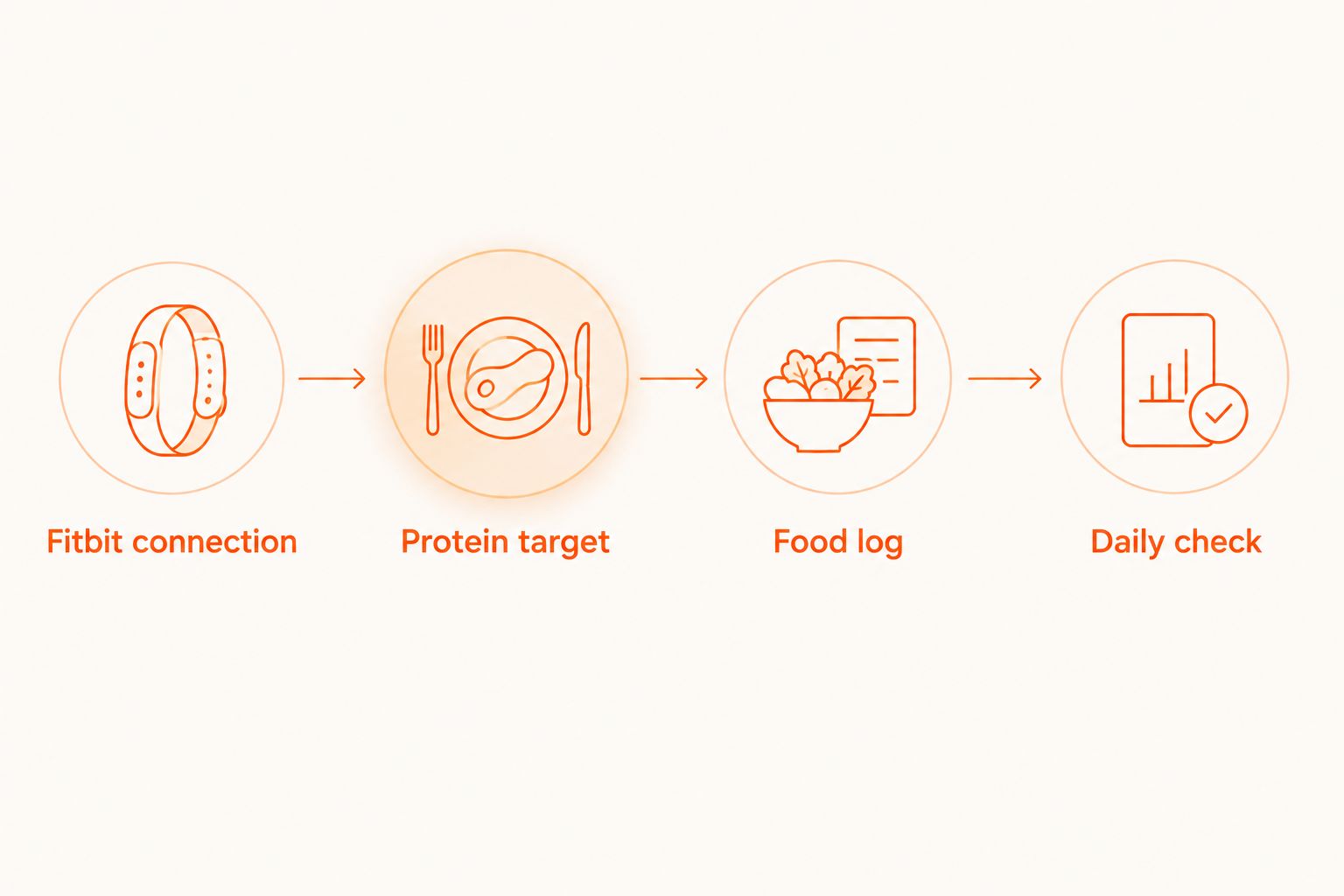
Run this check before relying on your 2026 dashboard:
- Fitbit connection: Confirm the wearable's activity has reached the Fitbit app.
- Protein target: Confirm the diary still shows your intended daily grams.
- Food log: Confirm portions and dates match what you ate.
- Daily check: Confirm you have not counted the same exercise through another source.
The expected result is separation, not automatic protein escalation: activity updates, food totals update when you log food, and protein remains tied to your plan.
Review protein whenever your calorie plan changes
A second workflow applies when you deliberately change your calorie plan—for example, when your nutrition professional revises your intake for a new training phase. Review the protein target after the planned change, not after every Fitbit update.
- Update the calorie goal according to your nutrition plan.
- Reopen the macronutrient settings and inspect Protein in grams.
- If you use percentages, recalculate the protein percentage needed to match the planned gram target. Account for the increments your interface permits.
- Check the displayed grams again after saving.
- Review carbohydrate and fat targets alongside protein rather than treating protein as the entire fueling plan.
Expected result: A deliberate calorie-plan change does not accidentally replace your intended protein target.
This variant suits people who manage calories and macronutrients together. Its drawback is additional checking: percentage settings can produce different gram totals after a calorie revision, even when the percentage looks unchanged.
For 2026 tracking, keep a short note of your intended protein grams outside the changing dashboard. That gives you a reference when you edit goals or reconnect an app.
Troubleshooting
Fitbit activity is missing from MyFitnessPal
Check Fitbit first. If the wearable has not synced with its own app, reconnecting MyFitnessPal will not supply the missing device data.
Then verify the connected Fitbit account and authorization status in MyFitnessPal. If authorization has been revoked, reconnect the accounts and review permissions. Do not add another intermediary connection as your first fix.
Protein grams increased after an active day
Inspect whether the protein goal is percentage-based and whether its calorie basis changed. A constant percentage does not guarantee constant grams.
Use a fixed gram target where your account supports it, or compare the displayed goal with your recorded nutrition-plan target. Do not eat extra protein solely to satisfy a change you cannot explain.
Activity appears to be counted twice
Review Fitbit, phone tracking, other health-data connections, and manually entered exercise. The same workout can reach a diary through more than one route.
Keep the intended activity source and remove the duplicate entry or overlapping import. Inspect existing diary entries after changing connections; disconnecting a source is not a substitute for checking the day's record.
Food totals look wrong despite successful syncing
Open the food entries and check serving units, portion size, and product variation. A wearable connection cannot correct an incorrect food entry.
Pay particular attention to dry versus prepared portions and additions to shakes. Correct the food log before changing the protein goal.
Activity or meals appear on the wrong day
Check the date selected in each app and compare time-zone settings, especially after travel or late-night workouts. An apparent missing entry can be a date mismatch.
Correct the underlying settings before entering the activity again. Otherwise, you risk creating a duplicate when the original record appears.
Customize your workflow
Keep the automation narrow: let Fitbit supply activity context and let your food diary track intake. Reassess protein when your training plan, body weight, or professional nutrition advice changes—not whenever your watch records extra movement.
For more detailed food-entry work, use the guide to logging whey protein and creatine in MyFitnessPal accurately. Accurate entries make the dashboard useful; additional connected apps do not compensate for incorrect servings.
FAQ
Can I sync Fitbit data to my protein target automatically?
You can connect Fitbit activity data to a compatible food tracker, but syncing activity is not the same as calculating an appropriate protein target. Set your daily protein grams separately and verify the displayed goal after connecting accounts.
Does walking more mean I need to add protein automatically?
A higher step count alone does not establish a new protein requirement. Base your target on your overall training and nutrition plan rather than converting steps or estimated calories into protein grams.
What's better for protein tracking: fixed grams or percentages?
Fixed grams are better for maintaining a defined daily protein target. Percentage-based goals suit a planned macronutrient split, but their gram totals change when the underlying calorie allowance changes.
Why did my protein goal change after Fitbit synced?
Check whether your tracker uses a percentage-based protein goal tied to an adjusted calorie allowance. Also inspect your nutrition settings before assuming Fitbit directly calculated a new protein requirement.
Do I still have to log meals after connecting Fitbit?
Yes, you still need to log food to track protein intake. Activity data does not identify the foods, ingredients, or portions you consumed.
Should I lower my protein target on rest days?
Do not lower your protein target solely because Fitbit records less activity. Follow the daily target or training-day variation specified in your nutrition plan.
Do I need protein powder to use this workflow?
No, protein powder is optional. You can track protein from regular meals, and any supplement you consume must be logged using its actual label and portion.
One last thing
An unchanged percentage can hide a changed protein target. After setup, check the number with the unit you actually eat: grams. That small check is more useful than adding another connection to your fitness dashboard.
Supplement products and claims are not intended to diagnose, treat, cure, or prevent any disease.
Leave a comment