







How to track your monthly supplement budget in Google Sheets
Instead of manually adding up supplement receipts every month, build a supplement budget tracker in Google Sheets that updates your spending totals whenever you log a purchase. This 2026 workflow separates transactions, monthly limits, and category totals so you can see what you spent without counting the same purchase twice.
TL;DR
- Build your supplement budget tracker Google Sheets workflow around purchase dates, actual charges, and monthly limits.
- Google Sheets recalculates monthly spending automatically after you enter a transaction; it does not import receipts in this setup.
- Log Tiger Fitness supplement purchases alongside other retailers so your budget reflects your full spending.
- Keep purchase spending separate from estimated supplement usage to avoid double counting.
Why this matters
Buying a tub and finishing a tub are different events. Your monthly purchase budget should track when money leaves your account, not when you finish the last serving. Otherwise, a bulk purchase and its daily usage can land in the same total.
Tiger Fitness is best for fitness enthusiasts shopping for supplements and workout gear, not for tracking household spending. Use Tiger Fitness for shopping and Google Sheets for the record of what you actually paid across retailers.
For your 2026 tracker, start with purchase-based accounting. It gives you a total you can reconcile against receipts; usage estimates belong in a separate calculation.
| Tracking approach | Best for | Advantage | Limitation |
|---|---|---|---|
| Purchase-based tracking | Controlling monthly cash outflow | Matches recorded transactions | Bulk purchases create uneven months |
| Usage-based tracking | Estimating the cost of supplements consumed | Separates consumption from purchase timing | Requires serving records and does not equal cash spending |
This guide builds the purchase-based version. You do not need to log every scoop to keep it accurate.
Before you start
- Get editing access: Use a Google account and a spreadsheet you can edit. These instructions use the desktop web interface with English menu labels.
- Gather your records: Have receipts or order confirmations, transaction dates, final charges, and any refunds ready. Use one currency throughout the workbook.
- Check the locale first: Open File, then Settings, and set Locale to United States for the formulas below. Dates stored as text will not behave like real dates, even when they look correct.
Choose your scope before entering transactions. If your supplement budget excludes apparel and gear, leave those items out. For mixed orders, record only the supplement portion and document how you allocated shared tax or shipping charges.
Purchase ledger configuration
The ledger is your source of truth. Enter transactions here once, then let formulas summarize them elsewhere.
Create the workbook and columns
- Create a blank spreadsheet and name it Supplement Budget 2026.
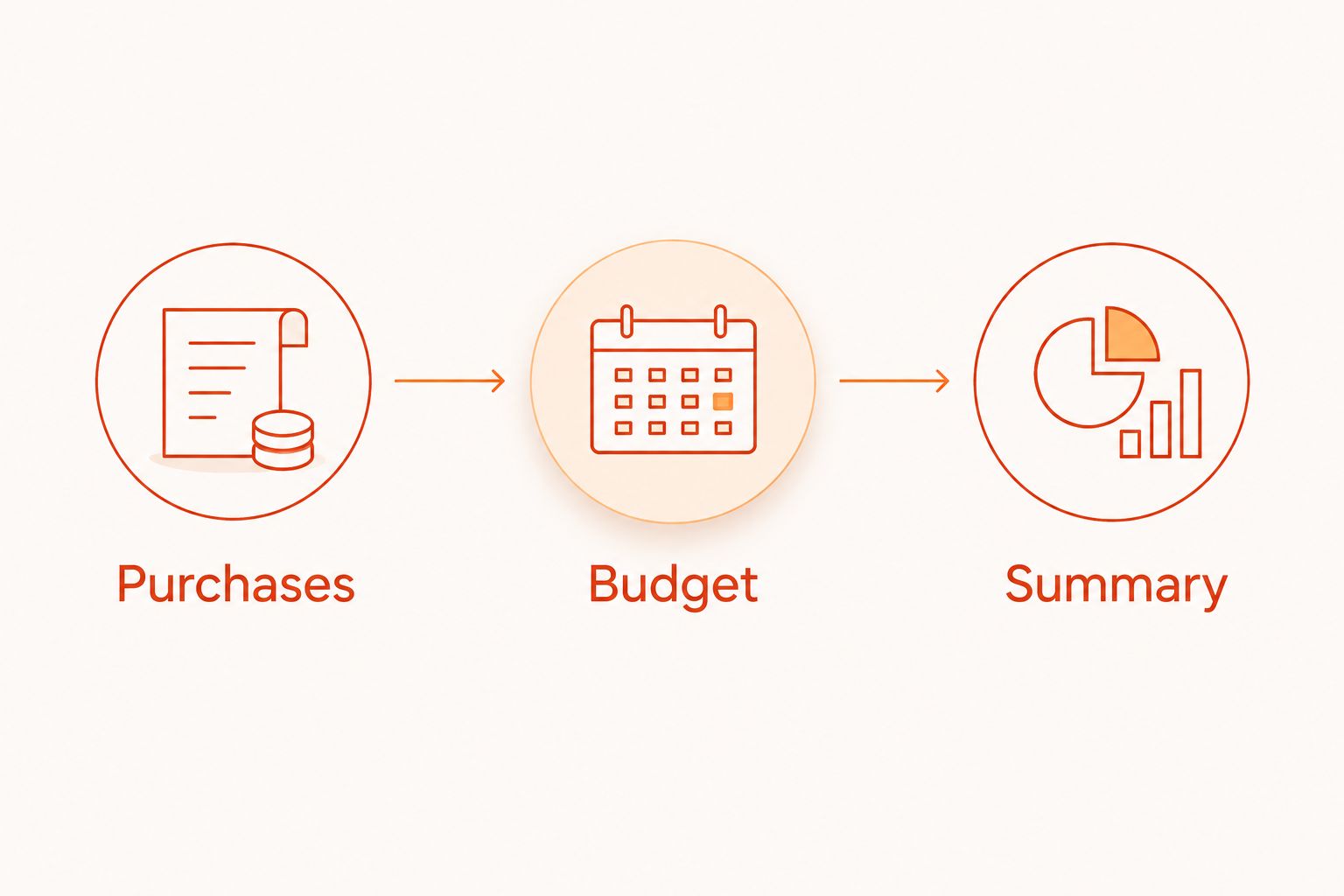
- Rename the first tab Purchases. Use the + button to add two more tabs named Budget and Summary.
- In Purchases, enter these headers across cells A1:F1: Date, Retailer, Product, Category, Amount, Reference.
- Select column A, then choose Format, Number, Date. Select column E and choose Format, Number, Currency.
- Keep row 1 visible through View, Freeze, 1 row.
You now have 3 tabs: one for data entry, one for monthly limits, and one for category review. Do not create a new purchases tab for every month; a continuous ledger keeps the formulas simpler.
Set consistent category names
Use a short category list: Protein, Creatine, Pre-workout, Vitamins, and Other. These are spending labels, not recommendations to buy every category.
- Select D2:D in Purchases.
- Choose Data, then Data validation, then Add rule.
- Under Criteria, choose Dropdown and enter your category names as separate options.
- Under Advanced options, set invalid data to Reject the input, then select Done.
Consistent spelling matters. A category formula will treat Protein and Protein powder as different labels unless you deliberately account for both.
Enter purchases without duplicating orders
Enter each supplement line item on its own row. Copy the product description from your receipt rather than relying on memory, and put the order number plus a line identifier in Reference.
For a Tiger Fitness supplement order containing multiple items, split the charge among those items. Allocate any shared charges consistently and make sure the rows add back to the supplement portion of the receipt. Do not also enter the full order total as another purchase.
Keep amounts numeric; put explanations in Reference, not Amount. For an optional completeness check, place =SUM(E2:E) in an unused cell outside column E and compare it with the receipts you entered, then remove the check when finished.
Expected result: Every included charge appears once, dates are recognized as dates, and each row has a consistent category.
Monthly budget configuration
Build the monthly view with date boundaries, not month names. A formula based only on January cannot distinguish January 2026 from January in another year.
Add monthly limits and formulas
- In Budget, enter these headers in A1:E1: Month, Limit, Actual, Remaining, Status.
- In A2, enter
=DATE(2026,1,1). In A3, enter=EDATE(A2,1)and fill A3 down through A13. - Format A2:A13 through Format, Number, Custom date and time so the display includes the month and year. Keep the underlying values as dates.
- Enter your own spending limit for each of the 12 months in B2:B13. Format B2:D13 as Currency.
- In C2, enter the monthly spending formula below, then fill it down through C13.
=SUMIFS(Purchases!$E$2:$E,Purchases!$A$2:$A,">="&A2,Purchases!$A$2:$A,"<"&EDATE(A2,1))
The formula sums Amount when Date falls on or after the month’s first day and before the next month begins. Open-ended ledger ranges include newly added purchase rows without editing the formula.
In D2, enter:
=IF(B2="","",B2-C2)
In E2, enter:
=IF(B2="","Set limit",IF(D2<0,"Over budget","Within budget"))
Fill D2:E2 down through row 13. Blank limits remain visibly unfinished instead of quietly acting like intentional zero budgets.
Make overspending visible
- Select D2:D13 and choose Format, then Conditional formatting.
- Under Format cells if, select Less than and enter
0. - Choose a contrasting fill and select Done.
A negative remainder means recorded spending exceeds your limit. It is a financial flag, not a reason to change a supplement dose or ignore professional advice.
Expected result: Adding a dated purchase changes only the matching month’s Actual, Remaining, and Status cells. This setup recalculates totals; it does not retrieve orders or connect to your bank.
Category summary configuration
Monthly totals tell you whether you exceeded your limit. Category totals show where the spending went, which makes the next purchasing decision clearer.
Build the selected-month view
- In Summary, type Selected month in A1 and enter
=Budget!A2in B1. Format B1 as a date showing month and year. - Enter Category in A3 and Spent in B3.
- In A4:A8, enter the exact category names used in your dropdown: Protein, Creatine, Pre-workout, Vitamins, and Other.
- Enter the formula below in B4, then fill it down through B8.
=SUMIFS(Purchases!$E$2:$E,Purchases!$D$2:$D,A4,Purchases!$A$2:$A,">="&$B$1,Purchases!$A$2:$A,"<"&EDATE($B$1,1))
To inspect another month, replace B1 with a reference to that month’s Budget cell, such as =Budget!A3. The formula uses the selected month’s start and end boundaries automatically.
Add Total in A9 and =SUM(B4:B8) in B9. Compare this total with Actual for the same month in Budget. A mismatch points to blank categories, inconsistent labels, or categories missing from the summary.
Review the result before another purchase
Look at the category total alongside the item descriptions. A high total alone does not tell you whether a purchase was useful, whether you already have an unopened container, or whether the item fits your goals.
Expected result: Changing the selected month changes the category breakdown, and its total matches the corresponding monthly spending figure.
Update totals whenever a refund posts
Refund tracking is the adjacent workflow that keeps a purchase budget honest. Keep the original transaction and record the refund separately so your ledger still explains both events.
- Add a new row in Purchases when a refund posts.
- Enter the refund’s posting date, retailer, product, and original category.
- Enter the refunded amount as a negative number in Amount.
- Include the original reference and the word Refund in Reference.
The existing formulas subtract the refund in its posting month. If you purchased in one month and received a refund in the next, the two entries belong to different monthly totals under this method.
For a partial refund, record only the amount returned. For a canceled order that was never charged, do not invent a purchase-and-refund pair.
Expected result: Net spending changes without erasing the original purchase history. A month can show negative net spending when posted refunds exceed new purchases.
Troubleshooting
A purchase does not appear in the monthly total
Check that Date contains a real date and Amount contains a number. Apply Date formatting, re-enter the date if necessary, and confirm that the year matches the month you are reviewing. Changing display formatting alone does not reliably convert text into a usable date.
The formula shows a parse error
Confirm that Locale is United States under File, Settings. The formulas here use commas between arguments; other locales use different separators. Also check that pasted quotation marks are straight quotes and the tab names match exactly.
Category spending is lower than monthly spending
Look for blank category cells or labels outside the summary list. Correct the ledger label or add the missing category and its formula to Summary. Do not change the monthly total merely to force agreement.
A receipt appears to count twice
Check Reference for repeated line identifiers and look for an order-total row alongside individual item rows. Remove the duplicate entry, not the legitimate item detail. Repeated products on different purchase dates are not automatically duplicates.
Sorting separates products from their amounts
Undo the sort immediately. Select the complete ledger, then use Data, Create a filter and sort through the header filter controls. Sorting only one column breaks the relationship between dates, descriptions, and charges.
Customize your workflow
Set a recurring 7-day review interval as a starting habit. During that review, enter missing receipts, reconcile refunds, and check unopened containers before making another purchase. At the end of each 2026 month, compare Actual with Limit before setting the next limit.
Keep the benefit and limitation clear: Google Sheets gives you editable formulas and category controls, but this workflow still requires accurate transaction entry. Tiger Fitness supplies shopping options; your ledger must include purchases from every retailer within your chosen scope.
If you later add remaining servings, put them on a separate inventory tab. Do not add estimated usage cost to purchase spending. They answer different questions. For the replenishment side, see the guide to automatically reordering supplements before you run out, while keeping posted transactions as your budget record.
FAQ
How do I make a supplement budget tracker in Google Sheets?
Create Purchases, Budget, and Summary tabs, then use SUMIFS to total transactions by month and category. Enter each purchase once and keep monthly limits separate from actual spending.
Will this spreadsheet automatically import my supplement orders?
No, this setup automatically calculates totals after you enter transactions. It does not connect to retailer accounts, email receipts, or bank feeds.
Should I track supplement purchases or daily servings?
Track purchases to control monthly cash spending. Track servings separately if you also want an inventory or consumption record; combining both costs in one total double counts spending.
How do I include tax and shipping in my supplement budget?
Allocate applicable tax and shipping across the included supplement items consistently. Make sure the item amounts reconcile to the supplement portion of the receipt, especially when an order also contains apparel or gear.
How do I record a supplement refund?
Add a negative transaction on the date the refund posts and use the original category. Keep the original purchase so the ledger preserves both events.
Can I track purchases from several supplement retailers?
Yes, enter every included retailer in the same Purchases tab. Monthly and category formulas sum all matching transactions regardless of the retailer name.
Why does my monthly total stay at zero?
Check for dates stored as text, amounts stored as text, or transactions outside the selected month and year. Confirm that the formulas reference the correct columns and that your tab is named Purchases.
One last thing
An unopened container is inventory, not permission to buy another one. Before your next order, compare what you already own with the category that is taking the largest share of your budget. Keep the 2026 ledger focused on money spent; use a separate inventory record to decide what needs replacing.
Products and claims are not intended to diagnose, treat, cure, or prevent any disease.
Leave a comment